Want To Know How Old Your Canon Lens Is?
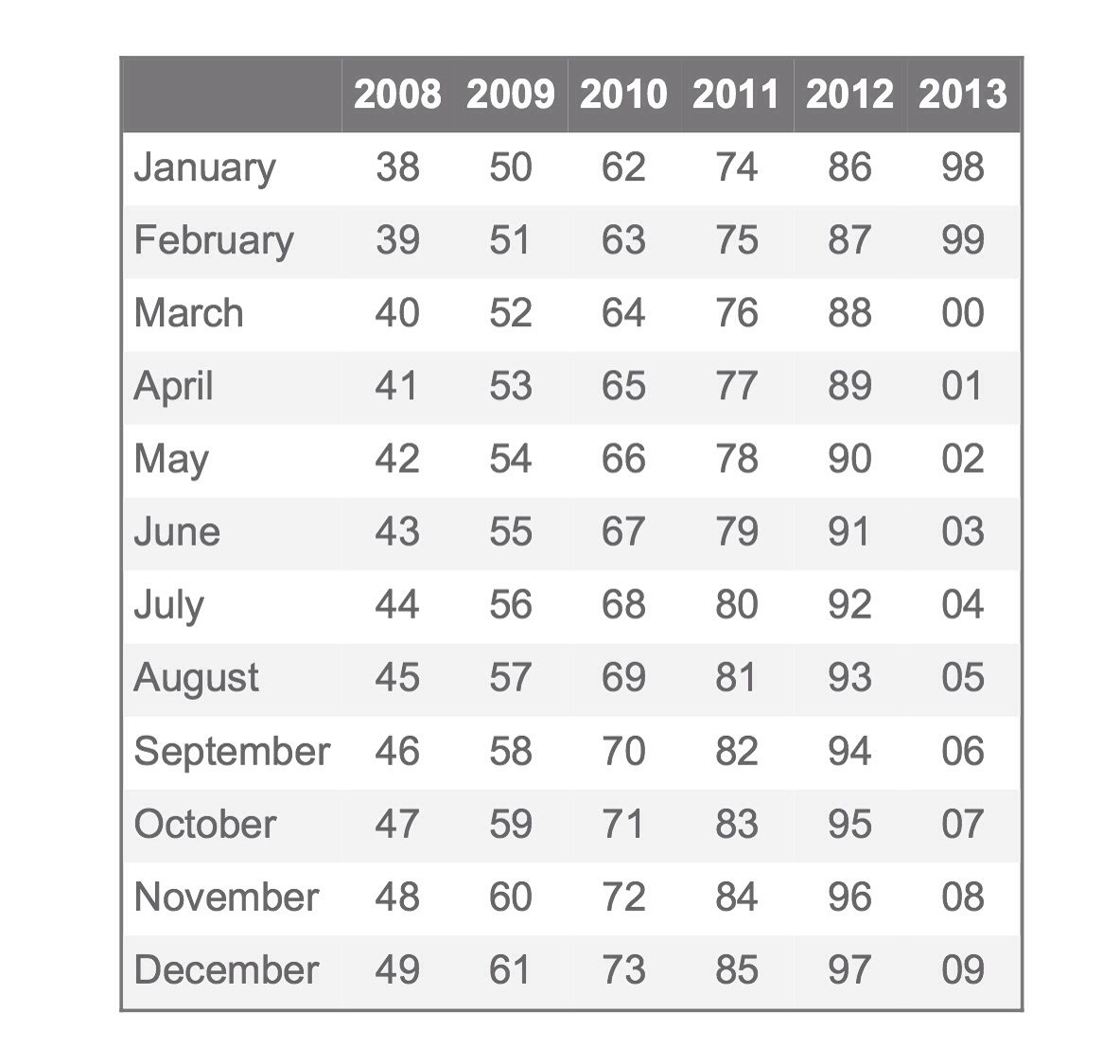
Image credit: The Digital Picture

Instructive post by The Digital Picture. How to know the age of your Canon glass? First, let's quote The Digital Picture's post:

Canon has been transitioning to a 10-digit lens serial number (starting in 2008 with the Canon EF-S 18-200mm f/3.5-5.6 IS Lens) and ending the inclusion of a separate manufacturing date code. While date codes and the shorter serial number are still found on some lenses manufactured as late as 2012, this inclusion will likely end completely. We loved the date code because it made aging a lens easy. However, now we can age a lens based on the serial number alone.

So, want to know the age of a lens using the 10 digits serial numbers? No problem. First, split the serial number in three parts: DD C SSSSSSS. The “DD” part mens the year of manufacturing (see image above). Be aware that the code assigned to the year 2013 is a prediction, the code may also become “DDD”. The “C” indicates the batch, the “SSSSSSS” is the serial number assigned to the lens.

And what about lenses made before the 10 digits system? Check the date code beside the rear lens element, see image below.
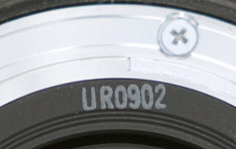
Image credits: The Digital Picture
Image credit: The Digital Picture

The first letter (“U” in the image) indicates the factory where the lens was made. “U” stands for Utsunomiya, “F” for Fukushima and “O” for Oita, all in Japan. The second letter (“R” in the image above) is the code of the year of manufacturing. See below:

  • A = 2012, 1986, 1960
  • B = 1987, 1961
  • C = 1988, 1962
  • D = 1989, 1963
  • E = 1990, 1964
  • F = 1991, 1965
  • G = 1992, 1966
  • H = 1993, 1967
  • I = 1994, 1968
  • J = 1995, 1969
  • K = 1996, 1970
  • L = 1997, 1971
  • M = 1998, 1972
  • N = 1999, 1973
  • O = 2000, 1974
  • P = 2001, 1975
  • Q = 2002, 1976
  • R = 2003, 1977
  • S = 2004, 1978
  • T = 2005, 1979
  • U = 2006, 1980
  • V = 2007, 1981
  • W = 2008, 1982
  • X = 2009, 1983
  • Y = 2010, 1984
  • Z = 2011, 1985

Canon incremented this letter each year, starting with A in 1986 and before using A in 1960 (without the initial factory code).

Finally, the first two numbers (“09” in the example) mean the month of manufacturing, the final two numbers (“02” in the example) are an internal code used by Canon. Sometimes the month code comes without the leading zero.

[thanks to The Digital Picture]
 

Amazing Fashion Shots Made With A Canon EOS M (Readers Work)

I am proud to feature a fashion shot made by our reader Chris McDuffie using a [shoplink 6091]Canon EOS M[/shoplink]. Despite the sluggish AF, the EOS M is a versatile camera and, as you can see, delivers outstanding image quality.

The title of the shot is “The Fifth Element”, it takes inspiration form sci-fi movies and high fashion. Chris used the following lenses for the shot:

  • [shoplink 6093]EF-M 22mm f/2 STM[/shoplink]
  • Sigma 30mm f/1.4
  • [shoplink 5686]EF 40mm f/2.8 STM[/shoplink]
  • [shoplink 133]Canon 85mm f/1.8[/shoplink]

All pictures are copyrighted by Chris McDuffie Photography. See more of his work at www.chrismcduffiephoto.com

If you want to share your pics and work here on canonwatch.com, then feel free to contact me. I am using the EOS M while abroad in Myanmar (former Burma). If you want to see my travel pics then click here.


Weird issue on the new 6D: Videos will not play on youtube!

Canon Japan just released a somewhat surprising statement. Videos shot on the new 6D and uploaded on youtube will simply not play!!! While they are working on a fix they also explain how to get around the issue

  1. Download 6D video files on your computer.
  2. Start ImageBrowser EX.
  3. Select the video you want to upload, and click “Edit Video” from the “Edit” tab at the top of the screen of EX prgram.
  4. “MoiveEdit Task” will start, click the “Save” button.
  5. Upload to youtube

That’s it!

Canon EOS 6D Service Notice (Movie Files Will Not Playback On Youtube)

Canon EOS 6D Product Advisory:

Thank you for using Canon products.

Phenomenon

We have identified a phenomenon which prevents movie files shot using Canon EOS 6D Digital SLR cameras from being played back on YouTube.

Affected Product

EOS 6D Digital SLR Camera

Support

While we continue to investigate this phenomenon, please follow the instructions outlined below to upload Canon EOS 6D movie files to YouTube. After our investigation is complete, we will make an update to this announcement.

1. Download the movie file(s) from the EOS 6D camera to your computer.

2. Start ImageBrowser EX, an application bundled with the EOS 6D.

3. After selecting the movie file(s) to be uploaded, select [Edit Movies] in the [Edit] tab from the menu bar of ImageBrowser EX.

4. “MovieEdit Task” will start. Save the movie using the [Save] menu on the screen.

5. Upload the saved movie to YouTube.

This information is for residents of the United States and Puerto Rico only. If you do not reside in the USA or Puerto Rico, please contact the Canon Customer Support Center in your region.

Please register the EOS 6D. By registering, we will be able to notify you via email when service updates are available.

Thank you,

Customer Support Operations

Canon U.S.A., Inc

Contact Information for Inquiries

Canon Customer Support Center

Phone: 1-800-OK-CANON

1-800-652-2666

TDD: 1-866-251-3752

Email: [email protected]

For additional support options: www.usa.canon.com/support